
App Name
aShell APK
Version
v7.4.0
Size
9.14 MB
Download
13k+
License
Open Source
Ads
Completely Ad-Free
Are you tired of constantly connecting your Android device to a PC just to run ADB commands?
AShell APK is right the solution for your problem. AShell is a tiny open-source app that provides a local ADB shell on your Android device, letting you type and execute commands without a computer.
In my testing, AShell made tasks like listing packages or capturing logs much easier, and it’s designed for anyone who needs quick command-line access. It comes with handy built-in commands and even a dark theme for comfort.
aShell is a local ADB shell for Shizuku powered android devices in other words, it requires the Shizuku service to run under normal Android permissions. Once you meet that requirement, AShell delivers a simple, no-nonsense way to manage your device.
In this guide, I’ll cover everything from what AShell APK does to how to install and use it, drawing on both official info and my own experience to make sure you have all you need.
Download aShell APK All Latest Versions
AShell is very lightweight under 2 MB and runs on Android 7.0+. You should install Shizuku first, since AShell requires a running Shizuku service to work.
Once set up, AShell only asks for storage permissions to save outputs and a Shizuku API permission, and it works on phones and tablets.
aShell APK Version v7.4.0
aShell APK Version v7.0.1
aShell APK Version v7.0.0
What’s New in Latest Version
The most recent update (v7.4.0) includes several fixes and improvements:
- Fixed Layout Issues: Resolved small interface glitches on the main screen.
- Improved Shizuku Initialization: The app now connects to Shizuku more reliably at startup.
- UI Animations Added: Slight animations make the app feel smoother.
- Example & Policy Updates: Expanded built-in command examples and updated the app’s policy dialog.
- Stability Fixes: Fixed occasional crashes in certain screens.
- New Languages: Added Italian and partial Czech translations; updated Korean and Traditional Chinese translations.
These changes from the official release notes. In short, the latest version is more stable and polished, so it’s a good idea to update whenever possible.
aShell APK – Quick Overview
| App Name | aShell APK |
| Latest Version | v7.4.0 – updated May 22, 2026 |
| Developer | Sunil Paul Mathew |
| Category | Tools / Utilities |
| Required Android | Android 7.0 (Nougat) or newer |
| File Size | 1.9 MB |
| Updated On | May 22, 2025 |
| Downloads | 23k |
| Pricing | Free (GPLv3 open-source) |
| Permissions | Storage access (read/write), Shizuku API permission |
| Supported Devices | Any Android device (7.0+) with Shizuku installed |
What is aShell APK?

AShell is an app that gives you a command-line “shell” on your Android device. On most Android phones, a shell is the built-in interface that the system uses to run commands. Normally, to access it you’d hook your phone up to a PC and use the Android Debug Bridge (ADB).
AShell packages an ADB shell right on your phone itself. This means you can open the app and type commands exactly as if you were on a computer. The key difference is AShell runs the commands locally via the Shizuku service, so no PC is needed.
Think of AShell as a handy ADBterminalemulator. It’s not a game or a file manager it’s aimed at power users and developers.
For example, if you want to quickly find all installed app packages or inspect system logs, AShell will do it directly on the device.
Key Features of aShell APK
AShell packs several helpful features to make on-device ADB work smooth and user-friendly.
Run ADB Commands Directly
You can execute almost any ADB shell command right in the app. There’s a clean terminal-style interface where you type commands and see results instantly. You don’t need to carry around a laptop – just use AShell and a USB (or wireless) debugging connection to Shizuku.
Built-in Command Examples
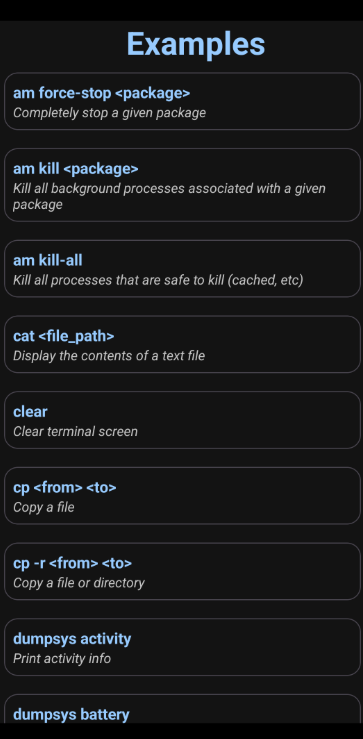
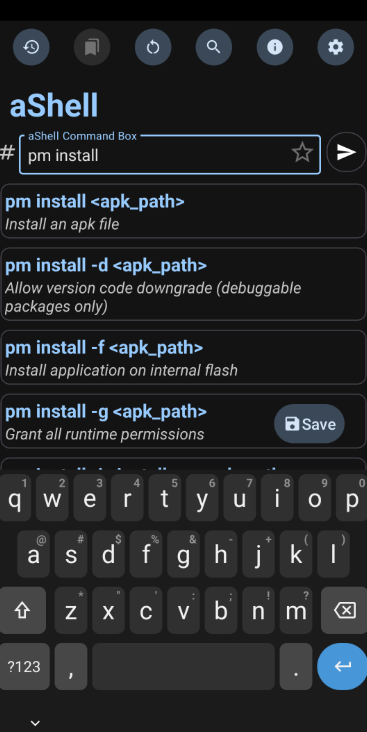
AShell includes many common command examples. The app shows templates for frequent tasks, so you can tap them instead of typing long commands. You can also bookmark your own favorite commands for one-click access. This speeds up work and helps beginners avoid syntax errors.
Continuous Output Handling
Some commands produce ongoing output. AShell handles these smoothly by streaming the live data in its window. You can scroll through the output and even search within it for specific text. This makes troubleshooting much easier – for instance, you can search a long logcat dump for an error keyword.
Save Output to File
If you need to review results later, AShell lets you save the output of the last command as a text file. For example, after running a logcat session or a diagnostics report, you can export it and review it in another app. This is handy for sharing logs or keeping records of what you did.
Auto Dark/Light Theme
AShell has a polished design with an auto-dark/light theme setting. The clean UI was called elegantly designed by the developers, so it’s pretty straightforward even if you’re new to command shells.
Lightweight & Open Source
AShell is extremely small and free app. It’s open-source (GPLv3), so anyone can inspect or build the code. The current version v7.4.0 has been actively maintained, and the developer provides source code on GitLab.
Requirements for aShell APK Installation
Before installing AShell, make sure you meet these requirements:
Android Version – Your device must be on Android 7.0 or higher.
Shizuku Setup – AShell relies on the Shizuku service, an Android system that grants apps elevated permissions without rooting. You must have Shizuku installed and running on your device.
Free Storage & RAM – AShell itself is very small (~2 MB), so storage is not a problem. It also requires only a few tens of MB of RAM. Any modern Android device (with 1–2 GB of RAM) can run it without performance issues.
In short, as long as you have a working Shizuku environment and Android 7.0+, you’re ready to go. The official instructions warn: “If you are not aware about Shizuku or don’t want to use it, please do not bother installing this app. It simply won’t work. So set up Shizuku first; once that is done, everything else is straightforward.
How to Download & Install AShell APK on Android
Follow these steps to install AShell safely.
Step 1: Install Shizuku APK
First, install the Shizuku app from the Google Play Store or F-Droid and enable it. Follow the setup instructions there.
Step 2: Install AShell APK
It’s best to install Ashell apk from official sources. The F-Droid repository hosts AShell. Using F-Droid will let you easily update later.
Step 3: Grant Permissions
When you first open AShell, it will ask for storage permission. Grant it so the app can save command outputs. It may also prompt you to “Grant” Shizuku API access allow that too.
Step 4: Open Ashell APK
With Shizuku active in the background, open Ashell app. You should see a terminal interface or a command prompt. If everything is set up correctly, you’re now ready to type commands.
How to Use aShell APK
Using AShell is simple once it’s installed.
Open the aShell App
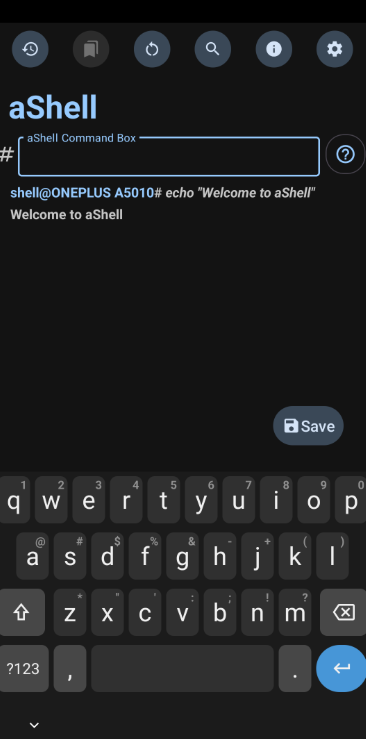
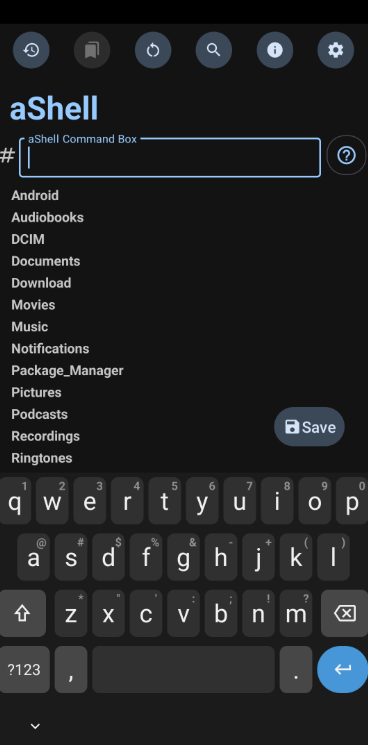
Launch AShell from your app menu. You’ll see a command prompt (usually starts with something like $ or a shell icon).
Start Shizuku
If Shizuku isn’t already running, the app will prompt you or simply not work. Switch to the Shizuku app and start its service often just by tapping a “Start” button or enabling ADB. Once Shizuku is on, go back to AShell.
Enter Commands
In AShell’s window, type any ADB shell command. For example, try pm list packages to list installed apps, or id to see your user identity. Then hit the Enter or Execute button. AShell will run the command and show the output right below.
Use Examples & Bookmarks
Tap the menu or examples icon to see a list of common commands. You can select one to auto-fill it. Bookmark any command (like getprop) for quick future use.
View & Search Output
If the command produces output, it will appear in AShell’s screen. For long outputs (like logcat), scroll up and down to review. Use the search function to find text in the output. This is handy for spotting errors or specific logs.
Save Results
If you want to keep the output, tap the menu and choose Save Output. This saves the last command’s output to a text file on your storage, which you can open later or share.
Exit
When you’re done, simply close the app. AShell does not run in the background after you exit. Next time you open it, it will remember any bookmarked commands or settings you saved.
Think of AShell like using a terminal on your phone. You’ll type commands just as you would on a computer.
For example, if I wanted to clear logcat, I’d type logcat -c. If I wanted to reboot, I’d type reboot. The difference is, these run on the device immediately.
Advanced Tips for Better Performance
Once you’re comfortable with AShell, here are some advanced tips.
Use Split-Screen
If you need constant ADB access alongside another app, put AShell in split-screen. This way you can copy data between apps or monitor logs while using another tool.
Leverage Continuous Commands
For long-running commands like top or logcat, let them run and then tap Search to quickly find what you need. AShell was designed with these use-cases in mind.
Adjust Buffer Settings
AShell keeps a large scrollback buffer. If you plan to run very chatty commands, consider dividing them into smaller chunks (or use | head) so the output is easier to navigate.
Dark Mode Saves Battery
On OLED screens, the dark theme can save a bit of battery. It also makes text easier to read at night. The auto-dark mode is useful, but you can force one or the other in settings if you prefer.
Test on Unlocked Screen
Some Android versions pause ADB functions when the screen is locked. For uninterrupted use, keep your device unlocked or disable the screen timeout while running commands.
Using AShell with these tips will give you a smoother, more powerful command-line experience on Android.
Pros & Cons
Pros
- Run Android debug commands directly on device. Great for on-the-go tasks.
- Only 2 MB app, free to use under GPL license.
- Comes with ready-made commands and bookmarks to save time.
- Easily search through logs or save results to files.
- Nice interface that adapts to your theme.
Cons
- Requires the Shizuku service. You must enable and trust Shizuku.
- Only executes shell commands. No fancy GUI or non-ADB features.
Best Alternatives to aShell APK
If AShell doesn’t meet your needs, here are some other Android apps that offer shell or ADB-like functionality:
1. Termux (Terminal Emulator)
A powerful terminal emulator with a full Linux environment. Not ADB-specific, but great for command-line tools and scripting.
2. LADB (Local ADB Shell)
Runs an ADB server in the app to execute ADB commands wirelessly. Useful on Android 11+ without requiring root, but it can’t be used alongside Shizuku.
3. ConnectBot
An open-source SSH client that lets you connect to remote servers via secure shell.
4. JuiceSSH
A user-friendly SSH/Telnet/Local Shell client. It supports multiple sessions and key authentication.
5. Termius
A modern SSH and SFTP client with nice UI.
6. Terminal Emulator for Android (JackPal)
A classic terminal emulator by Jack Palevich. Works as a basic shell on the device.
7. Shell Terminal Emulator (by MobilDev)
Another basic Linux shell emulator on Android, supporting common shell features.
8. Linux Deploy
Not a shell per se, but lets you install a full Linux distro (like Debian/Ubuntu) on your Android.
9. BusyBox Pro
For rooted users: provides a collection of common Unix tools on Android.
Each alternative has its own focus. Termux gives a robust Linux terminal, while LADB targets ADB-over-network without needing Shizuku. AShell is unique in being lightweight, on-device ADB via Shizuku, but these other apps can fill in if you need SSH or a more full-featured environment.
Is AShell APK Safe?
AShell source code is publicly available (on GitLab), and it’s licensed under GPLv3. Being open-source means anyone can audit the code for malware or privacy issues. In fact, the developer explicitly invites community contributions.
AShell is offered on trusted platforms like Google Play and F-Droid. APKMirror, a well-known site, even marks AShell as “verified safe to install”. These sources scan for malicious code and ensure the APK hasn’t been tampered with.
AShell only requests storage access and the Shizuku API permission. It doesn’t request things like camera, microphone, or SMS, which are often red flags. The storage permission is simply for saving text files. It has no advertising and doesn’t collect user data.
Conclusion
As a daily user of Android devices, AShell has become a handy tool. It won’t replace a full PC-based development environment, but for quick tasks it’s invaluable. I feel confident recommending it to anyone who dabbles in Android debugging or just wants occasional terminal access.
Ashell APK is a simple app for anyone who needs on-device Android shell access. It delivers on its promise, no more hunting for a laptop or cable to run simple ADB commands. We’ve covered how to install AShell, its requirements, its core features, and some personal tips.
If you find yourself frequently doing system tweaks or debugging on your Android device, AShell is worth trying.
In summary, AShell makes Android management easier and more portable. I’ve found it to be stable and secure.
FAQs
How do I update AShell to the latest version?
You’ll need to download the new APK from the developer’s page or F-Droid and install it over the old one.
Why won’t AShell install on my phone?
First, check your Android version – AShell requires Android 7.0 or higher. If your OS is too old, the installation will fail.
AShell keeps crashing or closing. What should I do?
Make sure you’re using the latest version. Restart your phone and open Shizuku first, then AShell. If the problem persists, go to Settings → Apps → AShell and tap Clear data/cache.
Do I need root access to use AShell?
No, root is not required. AShell uses the Shizuku service, which itself needs either a one-time ADB authorization or root to set up. After that, AShell runs commands without needing root every time. So you can use AShell on an unrooted phone as long as Shizuku is active.
Why does AShell say Shizuku not found or similar?
That means Shizuku isn’t running. Open the Shizuku app and start its service first. On some devices, Android may kill Shizuku when it’s in the background, so keep it open or enable its “Run in background” setting if available. Only after Shizuku is active will AShell be able to run commands.
Can I use AShell without a USB cable?
AShell itself doesn’t handle wireless connections; it connects via the Shizuku service. For wireless ADB, you would use LADB or Android’s built-in Wireless Debugging. Once that’s set up, Shizuku will work over wireless too, and AShell will follow. But setting up Wi-Fi ADB is done through Android’s Developer Options, not AShell directly.